Webhooks & auto-sync
Paid plans can enable automatic sync when Notion sends webhook events.
How it works
Section titled “How it works”- Notion notifies KnotCMS when your database changes.
- The worker debounces events (~10 seconds after the last change).
- A headless sync runs — no manual click required.
Enable auto-sync
Section titled “Enable auto-sync”Turn on Auto-sync on Notion changes in the setup wizard (Mapping step) or later on the project page under Sync behavior.
Step-by-step verification
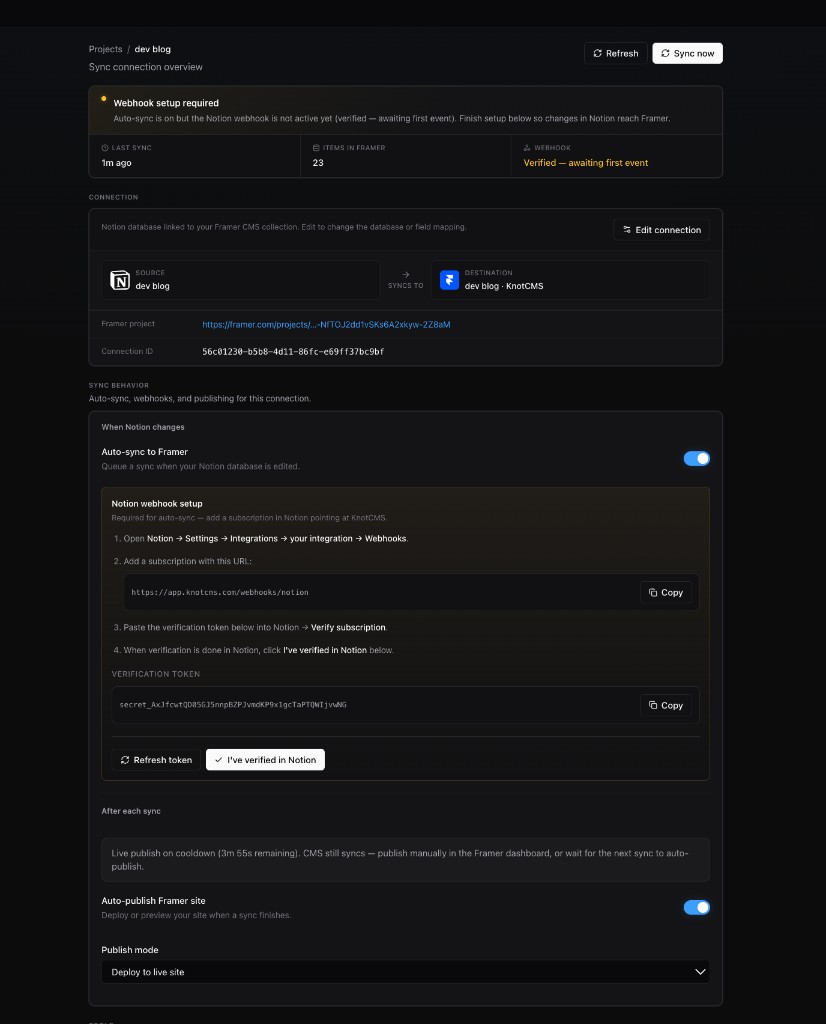
Section titled “Step-by-step verification”Your first sync can succeed before the webhook is verified. On the project page you will see Webhook setup required while Last sync and Items in Framer show the sync already ran.
1. Copy the webhook URL in KnotCMS
Section titled “1. Copy the webhook URL in KnotCMS”On your project page, open Sync behavior → Notion webhook setup and click Copy next to the webhook URL:
https://app.knotcms.com/webhooks/notion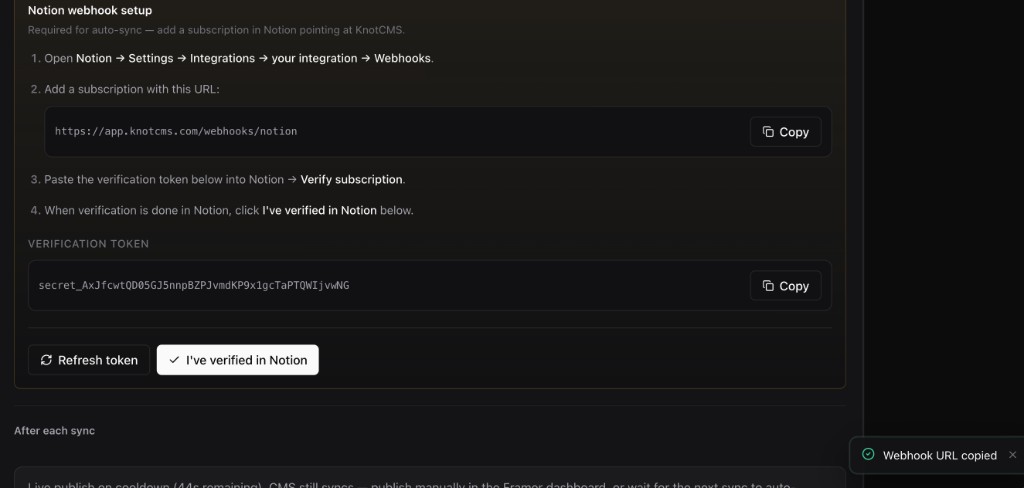
2. Open Webhooks in Notion
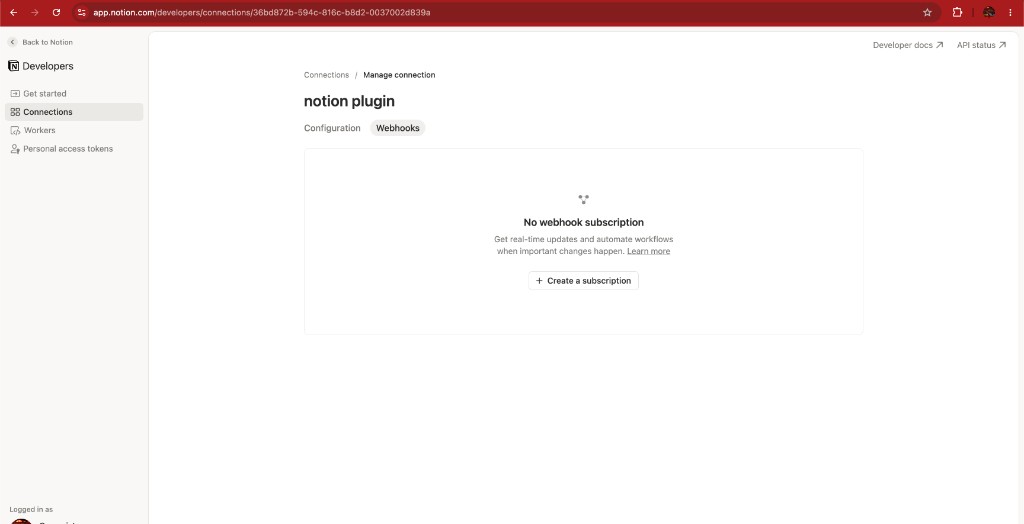
Section titled “2. Open Webhooks in Notion”In Notion, go to notion.so/my-integrations → open your KnotCMS integration → Webhooks tab → + Create a subscription.
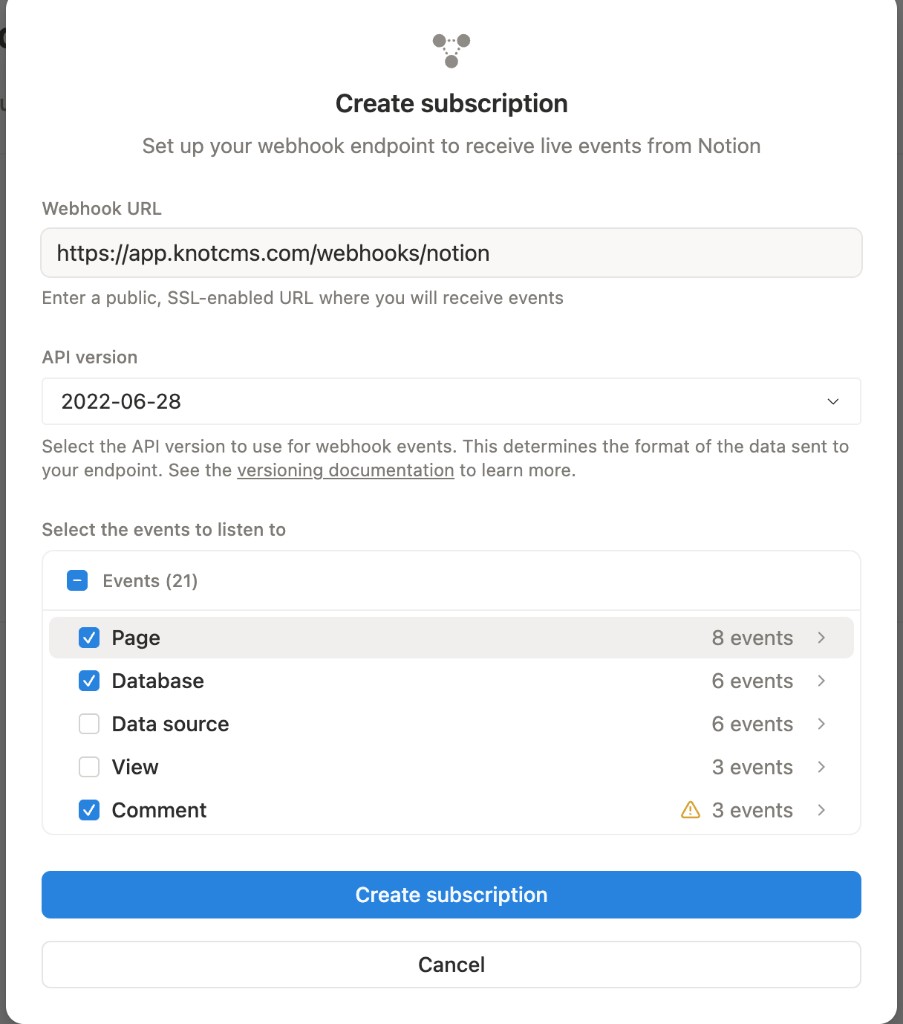
3. Create the subscription
Section titled “3. Create the subscription”Paste the KnotCMS webhook URL and click Create subscription. Default event selections are fine — KnotCMS only reacts to events for databases you connected.
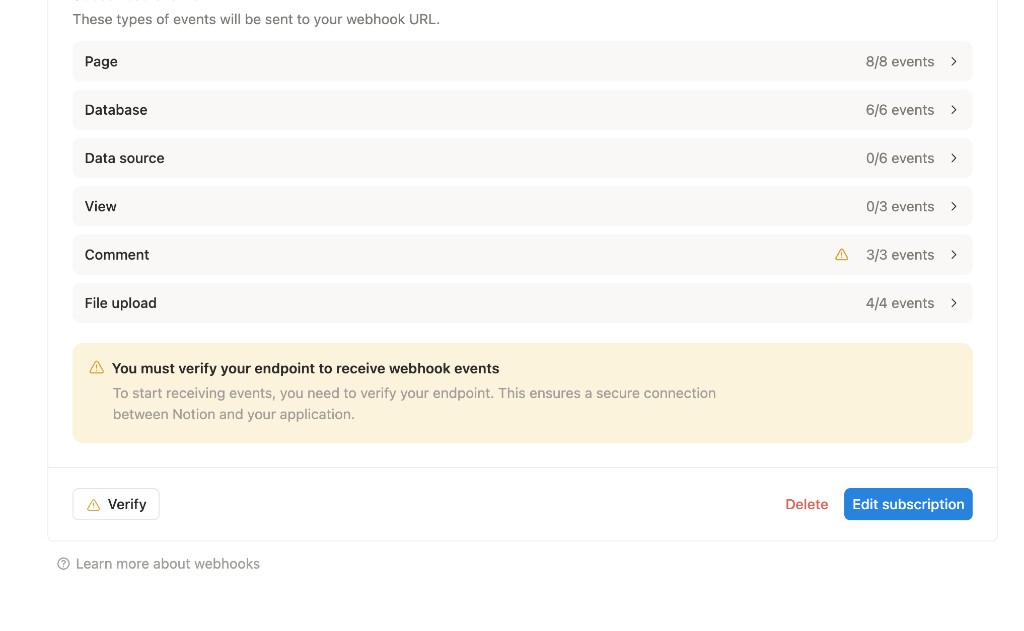
Notion creates the subscription but shows You must verify your endpoint before events are delivered. Click Verify.
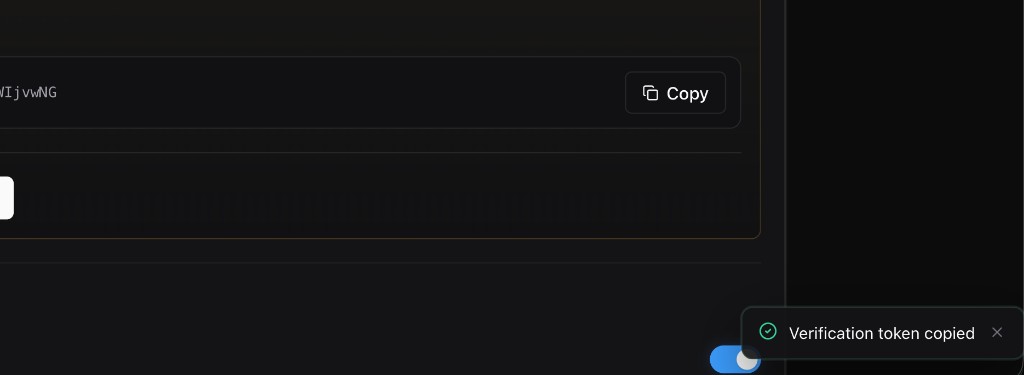
4. Copy the verification token in KnotCMS
Section titled “4. Copy the verification token in KnotCMS”Back on your KnotCMS project page, click Refresh token if the token field is empty, then Copy the Verification token.
5. Paste the token in Notion
Section titled “5. Paste the token in Notion”In Notion’s Verify subscription dialog, paste the token from KnotCMS and click Verify subscription.
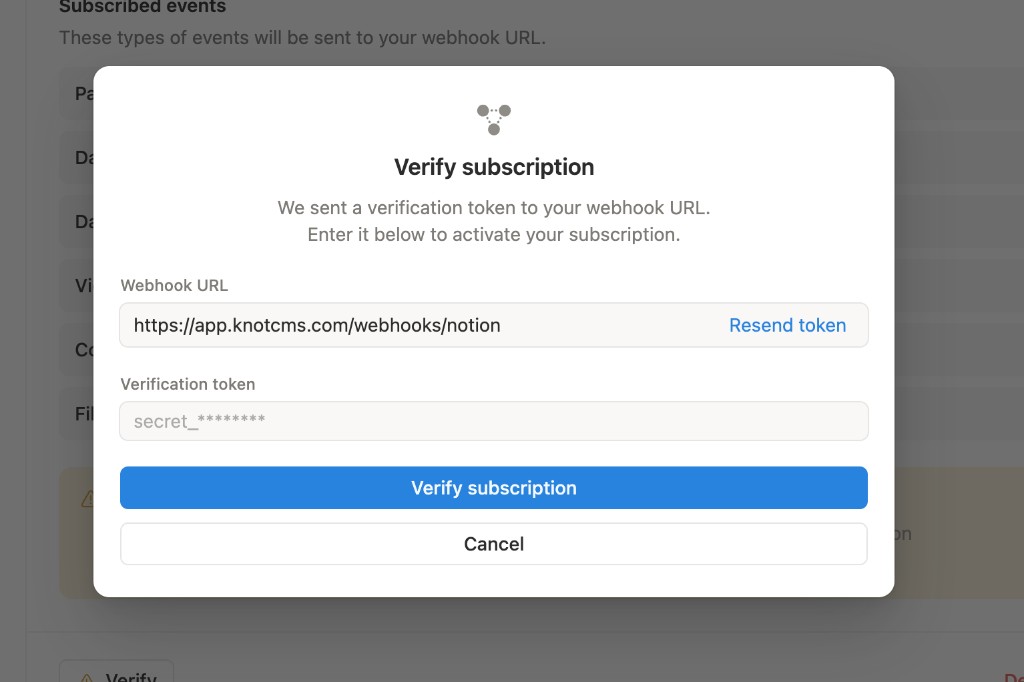
Notion should show This subscription is currently active.
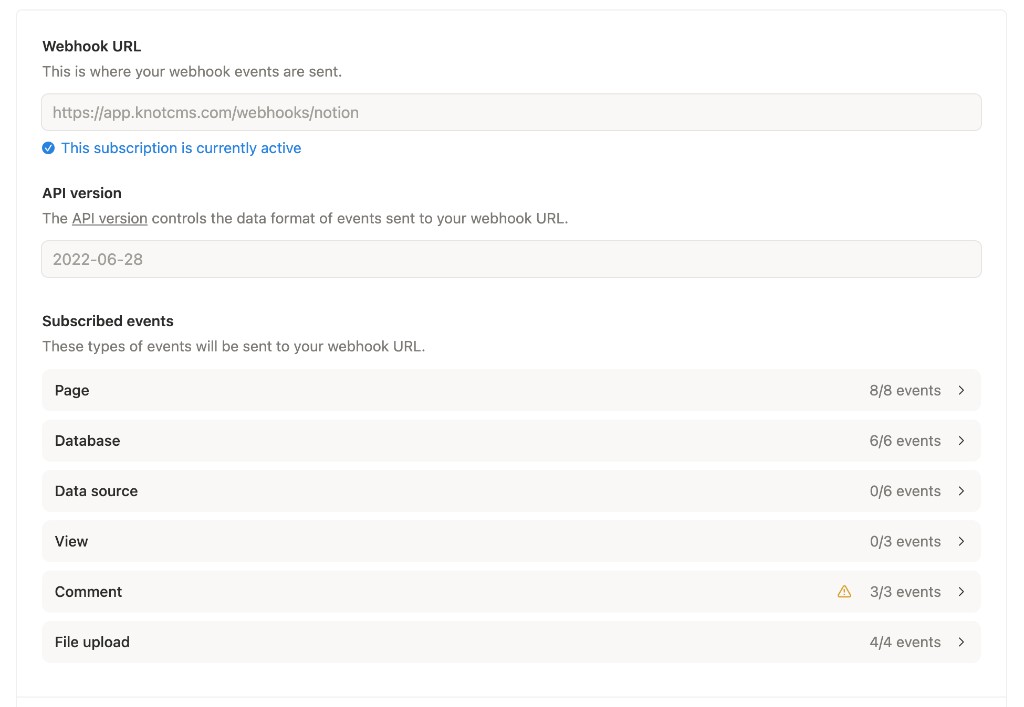
6. Confirm in KnotCMS
Section titled “6. Confirm in KnotCMS”Return to your KnotCMS project page and click I’ve verified in Notion. The status banner changes to Sync pipeline active and Webhook shows Active.
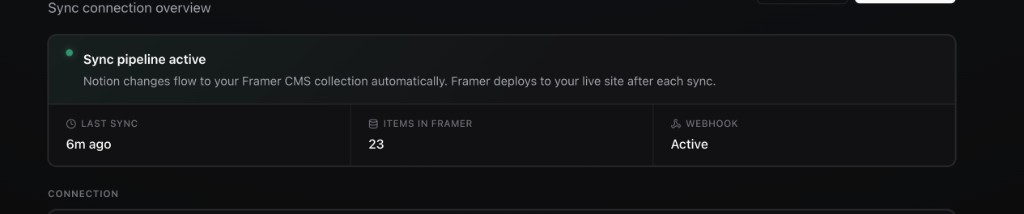
Test auto-sync
Section titled “Test auto-sync”After webhook verification, edit your Notion database — add a row or change a property. KnotCMS debounces webhook events (~10 seconds), then syncs automatically.
- Add or edit a row in your Notion database.

- Open your KnotCMS project page (or click Refresh). Last sync should update to Just now and Items in Framer should reflect the change — no Sync now click needed.
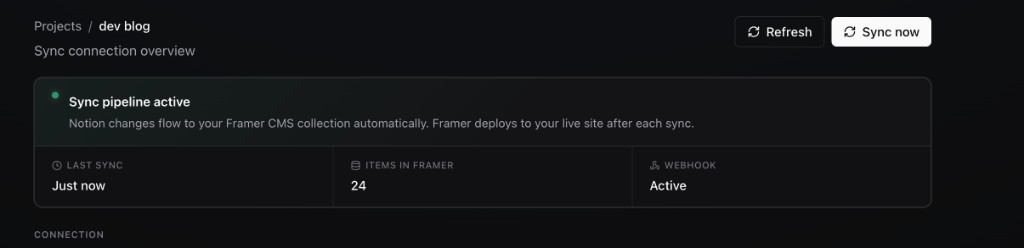
Limitations
Section titled “Limitations”Notion webhooks cover database-level changes, not every block-level edit inside a page. See FAQ.