Existing Framer collection
Best for: you already have Notion and Framer CMS collections to map together.
Setup path
Section titled “Setup path”In the wizard (Step 2 · Source), connect Notion, then choose option 2:
Connect existing databases
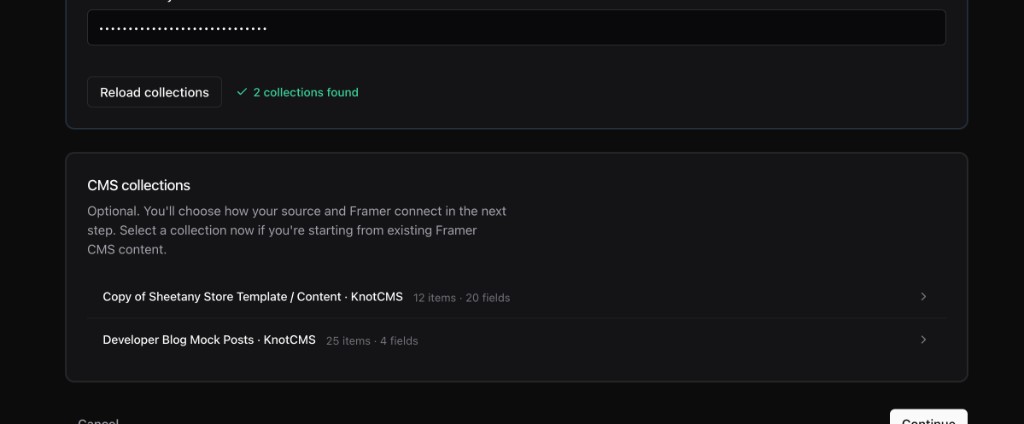
- Framer (step 1) — project URL + API key → Load collections → select the Framer CMS collection → Continue.
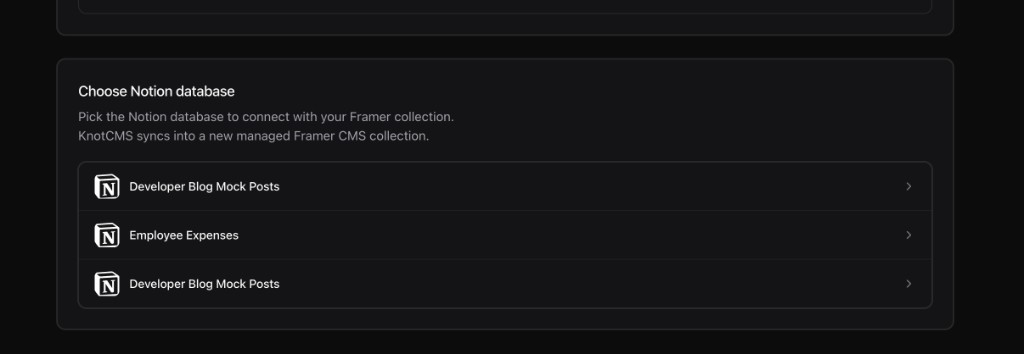
- Source (step 2) — Connect Notion → choose option 2 → under Choose Notion database, pick your Notion database.
- Mapping (step 3) — choose where Notion syncs → map fields → Create & sync.
Where should Notion sync?
Section titled “Where should Notion sync?”On the mapping step you choose how Notion writes to Framer:
Update existing collection (first option)
Section titled “Update existing collection (first option)”Sync in-place into the Framer CMS collection you selected in step 1. Framer column names must match the fields you map.
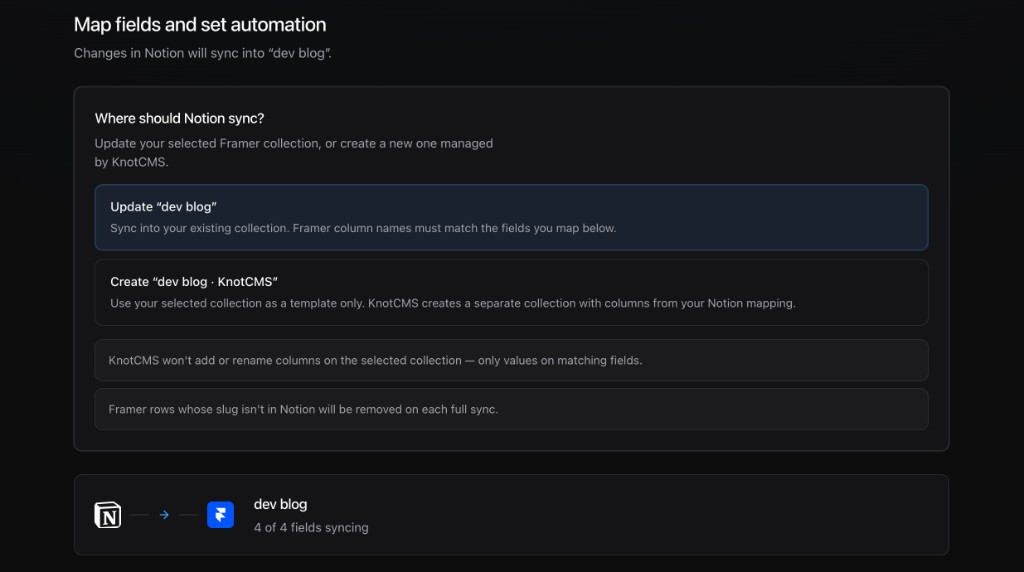
Create new KnotCMS collection (second option)
Section titled “Create new KnotCMS collection (second option)”Create ”… · KnotCMS” — your selected collection is a template only. KnotCMS creates a separate managed collection with columns from your Notion mapping. The original Framer collection stays unchanged.
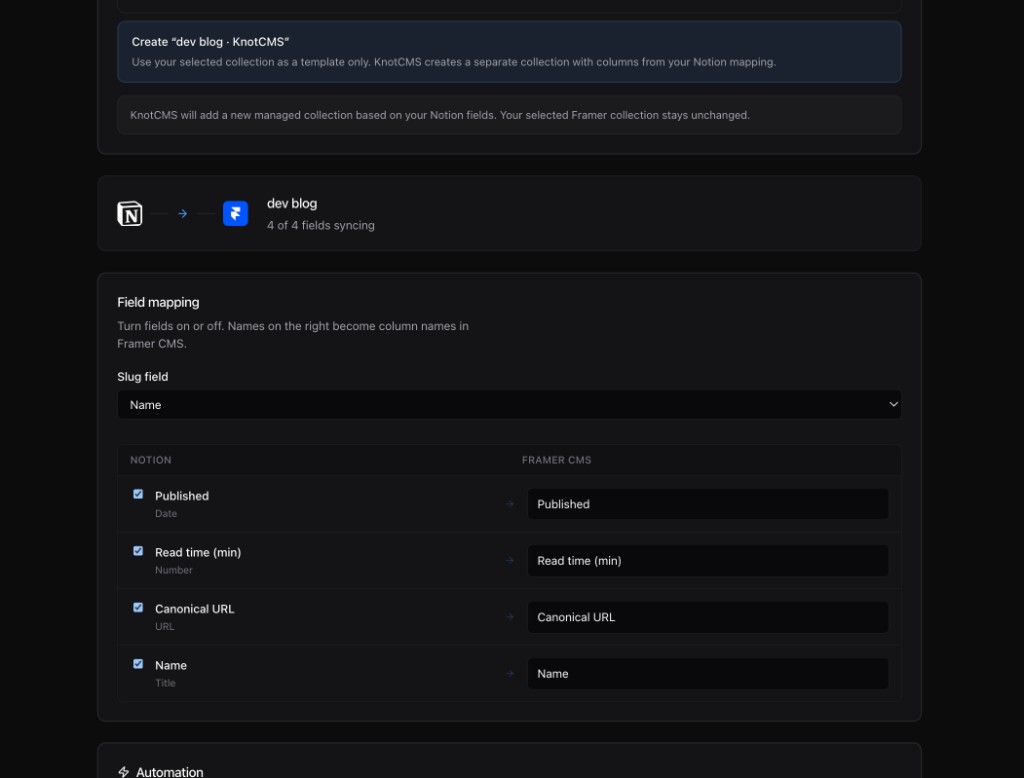
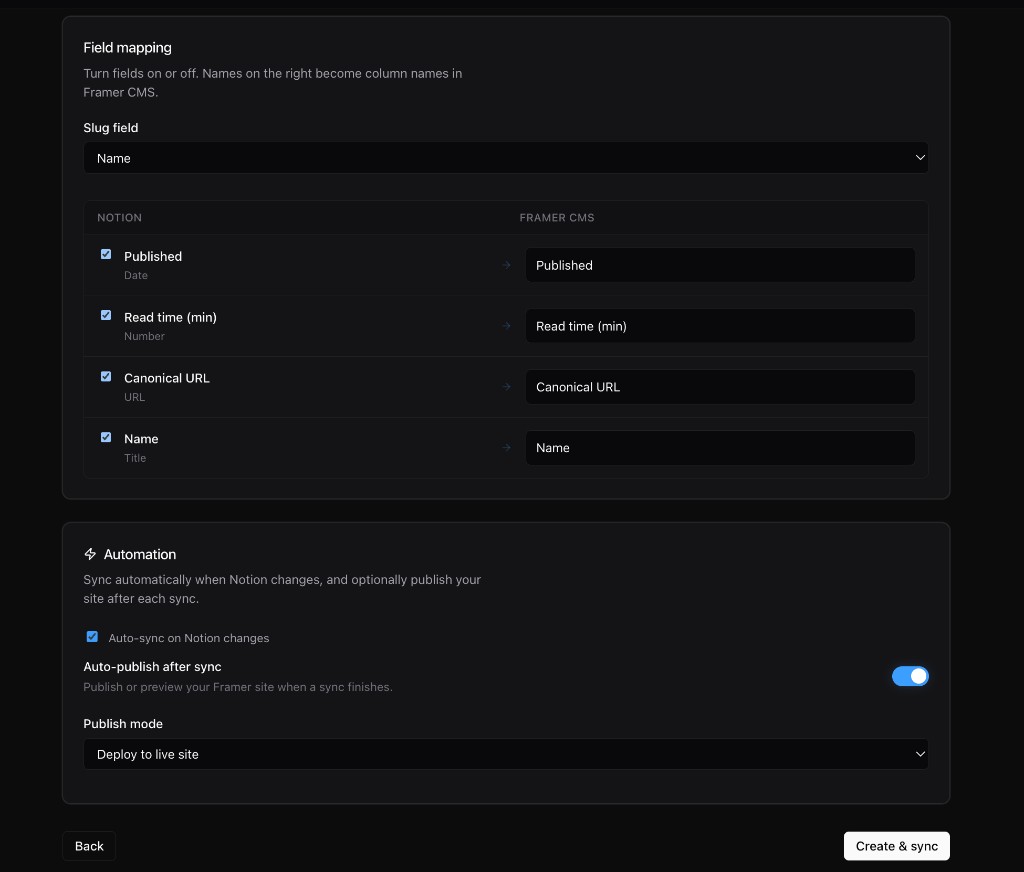
Map fields and sync
Section titled “Map fields and sync”Turn on the Notion properties to sync, choose the slug field, then click Create & sync.