
Connect Notion
Connect Notion on step 1 · Connect of the project setup wizard. You choose or create the database later, on step 3 · Fields.
Authorize your workspace
Section titled “Authorize your workspace”- In the wizard’s Content source card, click Connect on Notion.
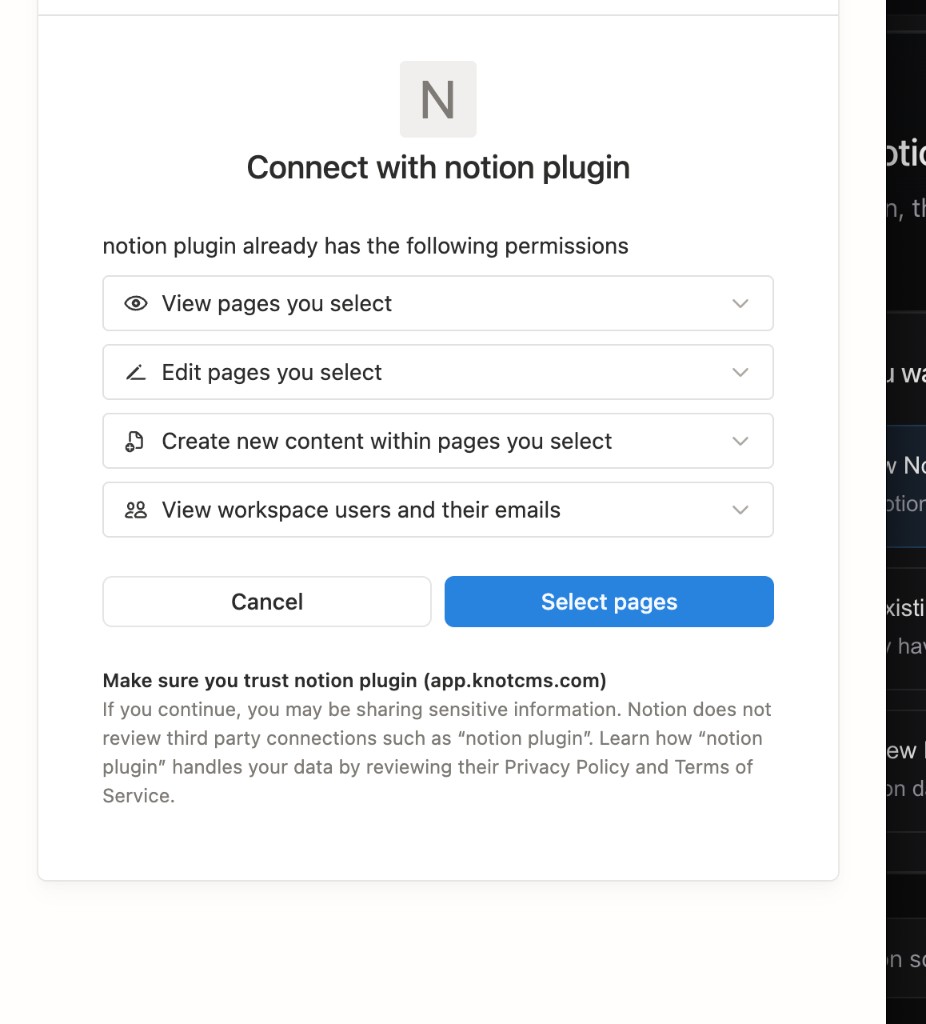
- In Notion’s authorization screen, choose the workspace you want to use.
- Click Select pages to choose what KnotCMS can access.
If you are using an existing database, select that database in the list. A database has a table icon; a plain page on its own is not a database of rows to sync.
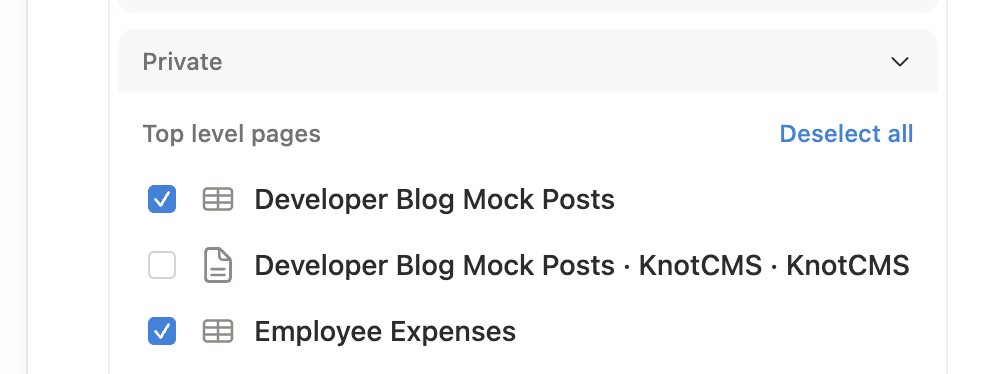
If you are creating a Notion database from Framer, authorize the workspace where you want the new database. You do not need an existing Notion database for this path.
Click Allow access to finish authorization.
Return to KnotCMS. The Content source card should say Notion connected.
Continue setup
Section titled “Continue setup”Fill in your Framer project URL and Server API key, then click Continue. In Direction, choose whether to create a Notion database, connect existing databases, or create a Framer collection.
Database not listed
Section titled “Database not listed”For either path that uses an existing Notion database, Fields lists the databases the connection can read.
If yours is missing:
- Check that you connected the correct Notion workspace.
- Check that you granted access to the database itself during authorization.
- In Notion, grant the KnotCMS connection access to that database if it does not already have it, then return to setup and reload the database list.
KnotCMS syncs database rows. A standalone Notion page will not appear as a database to select.
Change the database later
Section titled “Change the database later”Open your project’s Connection → Edit connection. You can choose another accessible database and update its mapping without creating another project. See Reconfigure a project.
Automatic sync
Section titled “Automatic sync”Once you have connected a database, enable auto-sync in the wizard’s Automation step or the project’s Settings tab. KnotCMS checks for changes every minute; there is no webhook or token to configure in Notion.