
Field mapping
Field mapping tells KnotCMS which Notion columns update which Framer CMS fields. For a new project, configure it on step 3 · Fields, after choosing a direction. You can also change mapping when you reconfigure a project.
Creating a project for the first time? Follow Create your first project for the full sequence.
Mapping table
Section titled “Mapping table”Each row is one Notion property. Turn rows on or off, edit the Framer CMS column name on the right, and pick which property is the slug.
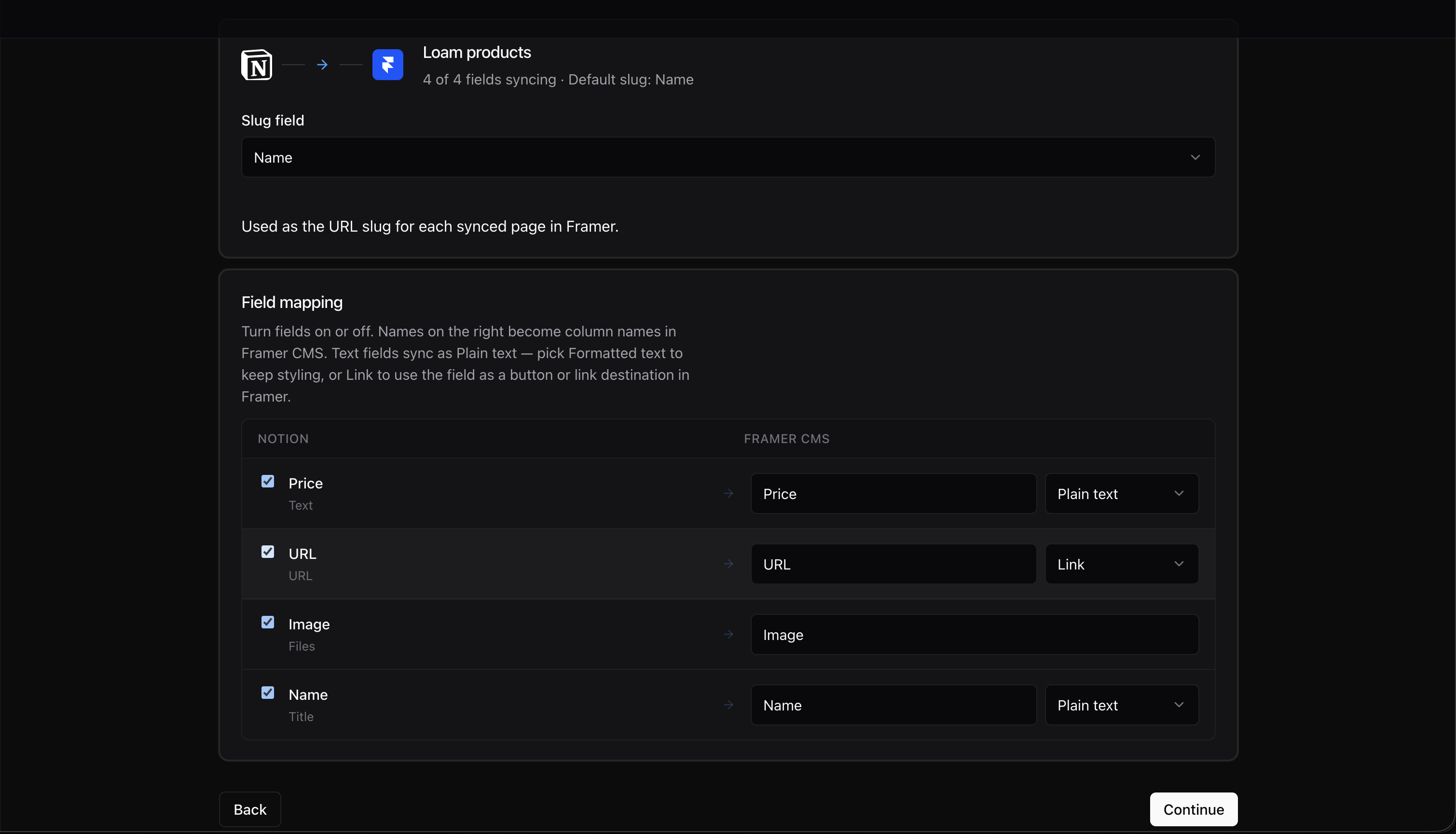
| Control | Purpose |
|---|---|
| Checkbox | Include this property in sync |
| Framer CMS name | Column name KnotCMS writes in Framer |
| Framer type selector | Choose a destination type where the property supports more than one |
| Slug field | Which Notion property becomes the item slug in Framer |
Keep at least one property enabled to continue. Choose a slug property with a distinct value for each row; it supplies the identifying part of each CMS page’s URL.
Where Notion syncs (connect-existing path)
Section titled “Where Notion syncs (connect-existing path)”If you chose Connect existing databases and the Framer collection supports in-place updates, Where should Notion sync? appears below the field mapping:
Update “your collection” — sync into the Framer collection you selected on step 2 · Direction. Columns whose names match your mapping are updated; a column is added for any mapped property that has none.
Create “your collection · KnotCMS” — KnotCMS adds a separate editable collection with columns from your mapping. The selected collection serves as a template.
For new Framer collection from Notion, there is no destination choice: KnotCMS creates a new collection. Collections owned by another plugin also use a separate editable collection.
Automation
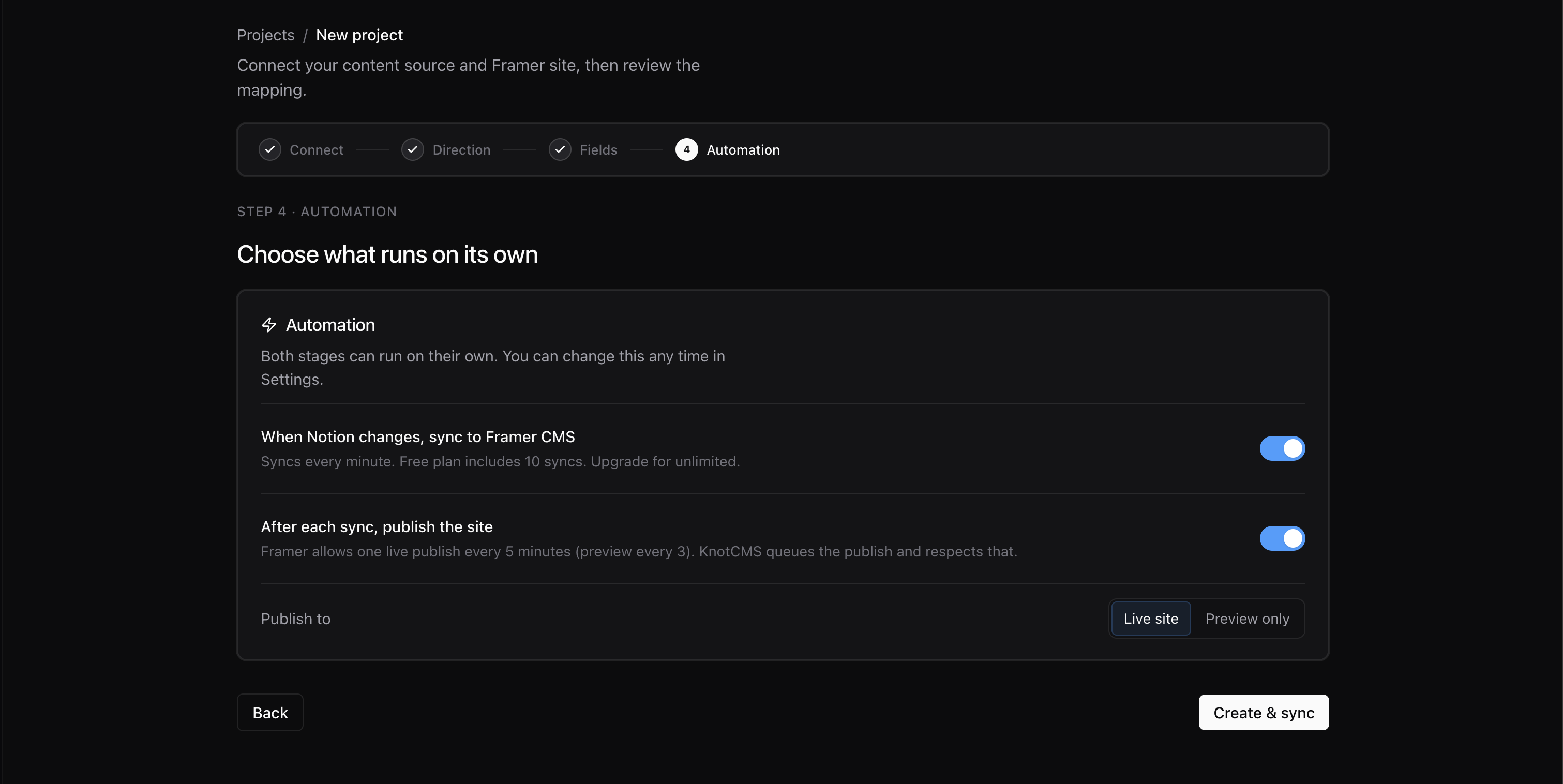
Section titled “Automation”In new-project setup, click Continue to open step 4 · Automation. Set auto-sync and auto-publish, then click Create & sync. See Create your first project.
Supported types
Section titled “Supported types”Notion property types (Title, URL, Date, etc.) are detected automatically. See Supported field types for how each type is written to Framer.
Changing a column’s type
Section titled “Changing a column’s type”KnotCMS adds a Framer column for any mapped Notion property the collection is missing. It never renames, retypes or removes a column you already have — your Framer collection stays yours.
That means changing the field type in KnotCMS does not change a column that already exists in Framer. If a column was created as plain text and you later map that field as a Link, the column stays plain text and your buttons still have nothing to point at.
To change the type of a column that already exists:
- In Framer, delete the column from the CMS collection.
- In KnotCMS, open Connection → Edit connection, map the field again with the type you want, and save.
- Click Sync now.
KnotCMS creates the column fresh, with the new type, and fills it on that sync.
Change mapping later
Section titled “Change mapping later”Open Connection → Edit connection on the project page — Reconfigure a project.